SSO ID Registration
Complete step-by-step instructions on how to create your new SSO ID for accessing Rajasthan Government services.
Before You Begin
To register successfully on the Rajasthan SSO Portal, ensure you have the following documents or accounts ready depending on your category:
- For Residents of Rajasthan: Jan Aadhaar Card or Bhamashah ID.
- For All Citizens: Valid Google (Gmail) Account.
- For Govt Employees: SIPF ID and Password.
- For Businesses: BRN (Business Registration Number).
1. Citizen Registration Process
This is the most common method for general public users. You can register using either Jan Aadhaar (recommended for residents) or Google (for others).
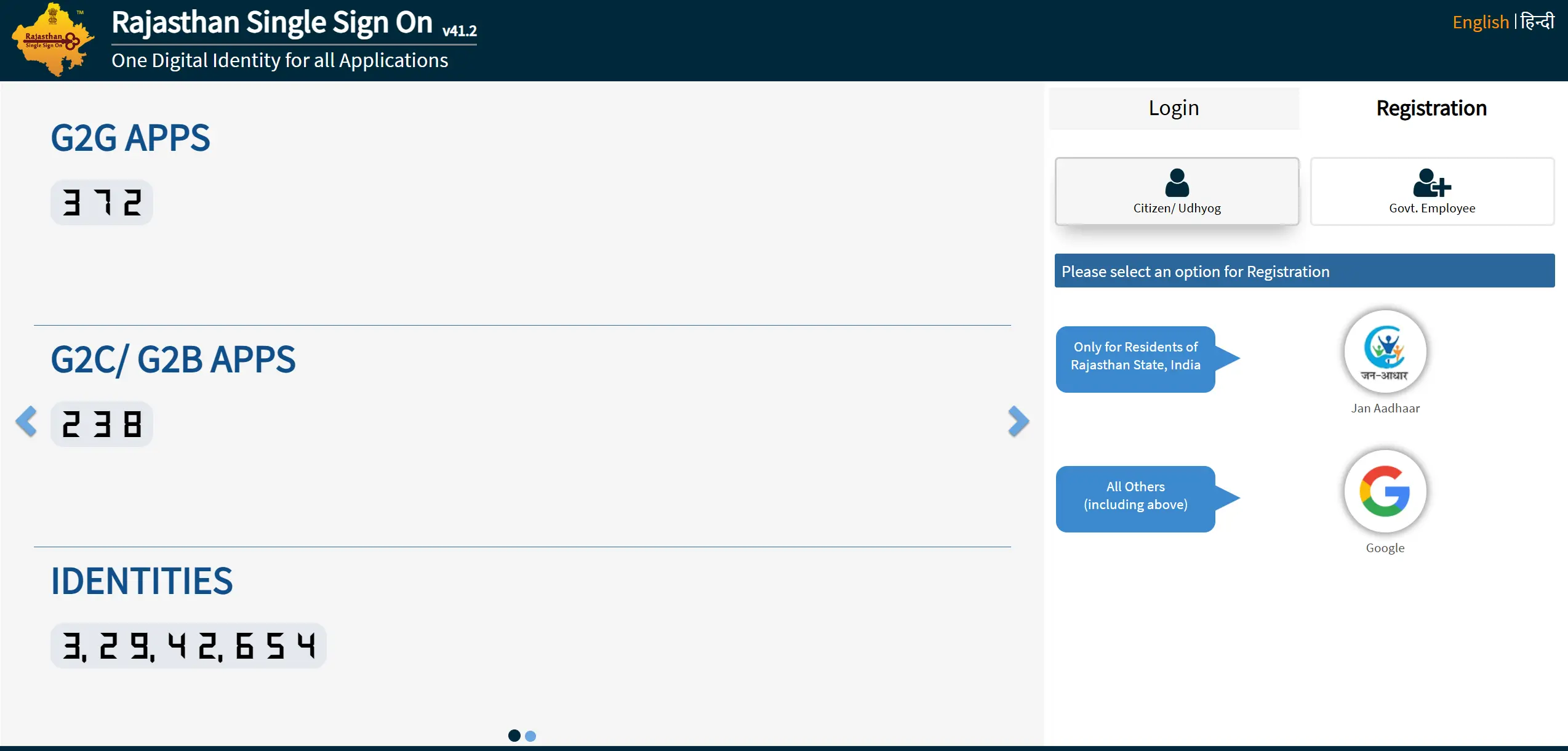
Option A: Using Jan Aadhaar (Recommended)
- Go to sso.rajasthan.gov.in/register.
- Select the "Citizen" tab.
- Click on the "Jan Aadhaar" icon.
- Enter your Jan Aadhaar ID number and click Next.
- Select your name from the family member list.
- Click "Send OTP". An OTP will be sent to the mobile number linked with your Jan Aadhaar.
- Enter the OTP to verify.
- Create a strong password and your SSO ID will be generated automatically (usually your name).
Option B: Using Google (Gmail)
If you do not have a Jan Aadhaar card, follow these steps:
- On the registration page, select the "Google" icon.
- A pop-up will appear asking you to sign in to your Gmail account.
- Enter your Gmail ID and Password.
- The system will fetch your email username as your suggested SSO ID.
- Confirm the SSO ID and set a new password for the portal.
- Click "Register" to complete the process.
2. Government Employee Registration
State Government employees must register using their SIPF details to access official apps like RajKaj.
- Go to the Registration page and select the "Govt Employee" tab.
- Select the "SIPF" option.
- Enter your SIPF Number (Employee ID).
- Enter the SIPF Password. (If you don't know this, contact your department's DDO or SIPF office).
- Once verified, the system will allow you to set your SSO password.
3. Business (Udyog) Registration
For business owners wanting to access industrial services.
- Select the "Udyog" tab on the registration page.
- Enter your Business Registration Number (BRN).
- Verify your details using the mobile number registered with the BRN.
- Set your username and password to complete the registration.
Common Registration Issues
"Mobile Number Not Updated"
If you are using Jan Aadhaar/Aadhaar and get this error, it means your current mobile number is not linked to your card. You must visit an E-Mitra center or the Aadhaar center to update your mobile number first.
"SSO ID Already Exists"
This means an ID has already been created using your Jan Aadhaar or Aadhaar number. Do not create a new one. Instead, go to the Login page and use the "Forgot SSOID" option to recover your existing ID.
Need Help Registering?
If you face technical errors during registration, you can email the helpdesk.
Email: [email protected]