SSO ID Login Rajasthan
A comprehensive step-by-step tutorial on how to access the Rajasthan Single Sign-On portal for various services.
SSO ID Login Process
Logging into the SSO Rajasthan portal is the gateway to accessing over 100+ government applications including E-Mitra, SIPF, Scholarship portals, and Recruitment forms. Before you begin, ensure you have your SSO ID (Username) and Password ready.
1. Citizen Login Guide
This method is for general citizens wishing to access services like paying bills, applying for jobs, or checking land records.
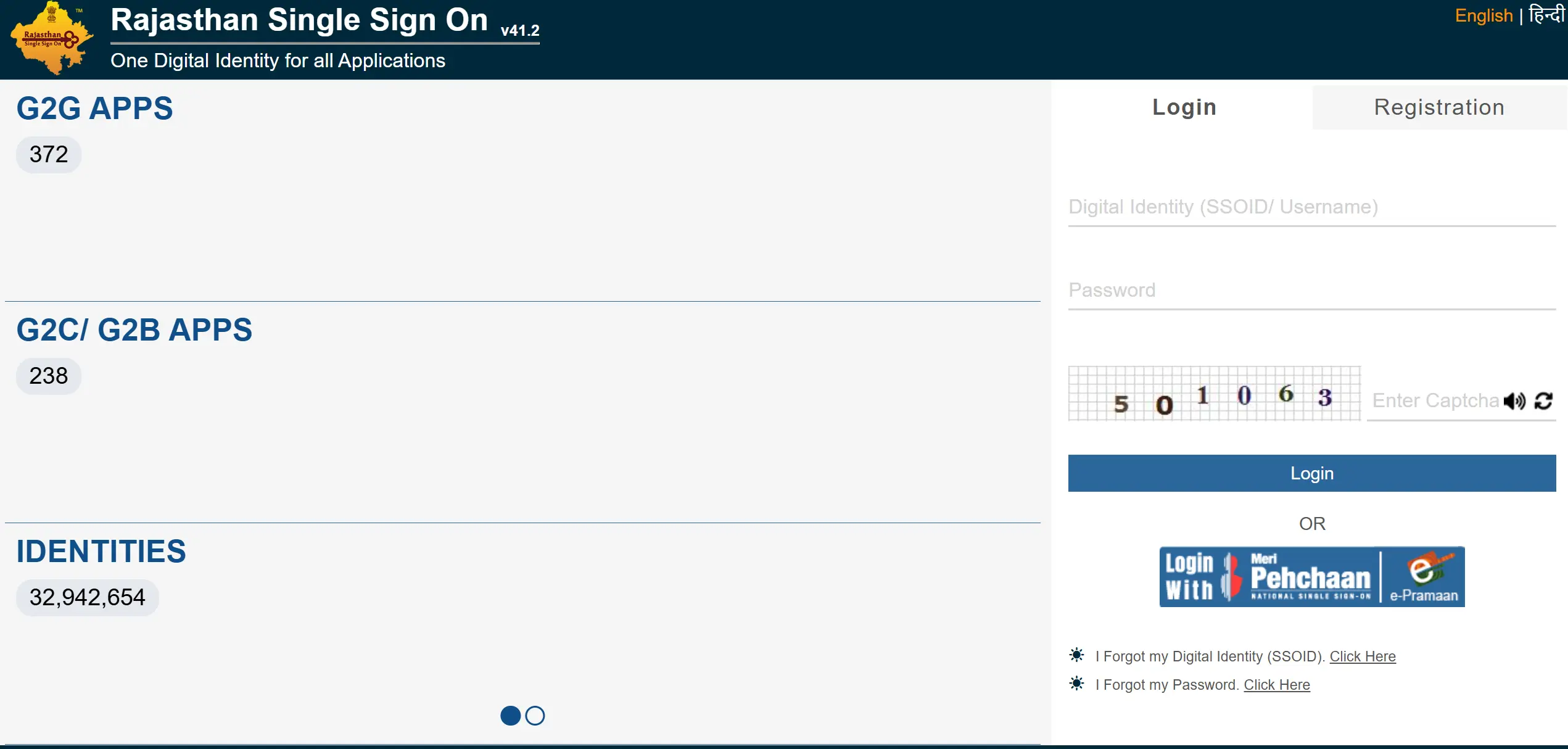
- Open your web browser and navigate to sso.rajasthan.gov.in/signin.
- On the homepage, you will see a login panel on the left (desktop) or top (mobile).
- Enter your unique SSO ID (Digital Identity) in the first field.
- Enter your Password in the second field.
- Enter the 6-digit Captcha code exactly as shown in the image.
- Click the green Login button.
Once logged in, you will be redirected to your dashboard where you can see icons for various apps (G2C services).
2. Government Employee (SIPF) Login
Government employees of Rajasthan use the SSO portal primarily for SIPF (State Insurance and Provident Fund), transfers, and leave applications (RajKaj).
- Visit the official SSO portal.
- The login process is the same as citizens, but your SSO ID is usually your Employee ID (e.g., RJJO2023...).
- After logging in, look for the SIPF (New) icon for PF and insurance related tasks.
- Use the RajKaj app for official file tracking and leave management.
Troubleshooting Login Issues
Facing trouble logging in? Here are solutions to the most common problems users face.
I Forgot My SSO ID
- Click on the "Forgot SSOID" link on the login page.
- Select one option: Jan Aadhaar, Bhamashah, Aadhaar, Google, or Facebook.
- Enter the registered mobile number or ID number associated with that option.
- You will receive your SSO ID via SMS on your registered mobile number.
I Forgot My Password
- Click on the "Forgot Password" link.
- Enter your SSO ID.
- Choose a verification method: Mobile Number, Email, or Aadhaar.
- Enter the OTP sent to your selected method.
- Create a new, strong password and confirm it.
"Invalid Captcha" Error
This error occurs if you type the code incorrectly or if the page has timed out. Click the Refresh Icon next to the captcha code to get a new image, then type it carefully.
"SSO ID Mismatch" Error
This usually happens when you try to log in to a government app (like a recruitment portal) using a different SSO ID than the one linked to your Aadhaar/Jan Aadhaar. Ensure you are using the correct, primary SSO ID.
Still Can't Login?
If you have tried all the steps above and still cannot access your account, please contact the official SSO Helpdesk.
Helpline: 0141-5153222 | Email: [email protected]